
How to Pack a Printer for Moving: Step-by-Step Guide
Knowing how to pack a printer for moving can save you from leaked ink, a dried-out print head, or a printer that won’t power on in your new home. Printers are heavier than they look. The parts inside are delicate, and the ink or toner can spill, dry out, or suffer in the heat.
Most moving guides skip this: printer makers don’t agree on what to do with the ink. Some say pull the cartridges. Others say leaving them in is the only way to protect the print head.
Quick Answer
- Check your printer’s manual or the manufacturer’s support page first. Ink and toner rules differ by brand and model.
- Power the printer off with its button, and unplug it only after it finishes shutting down.
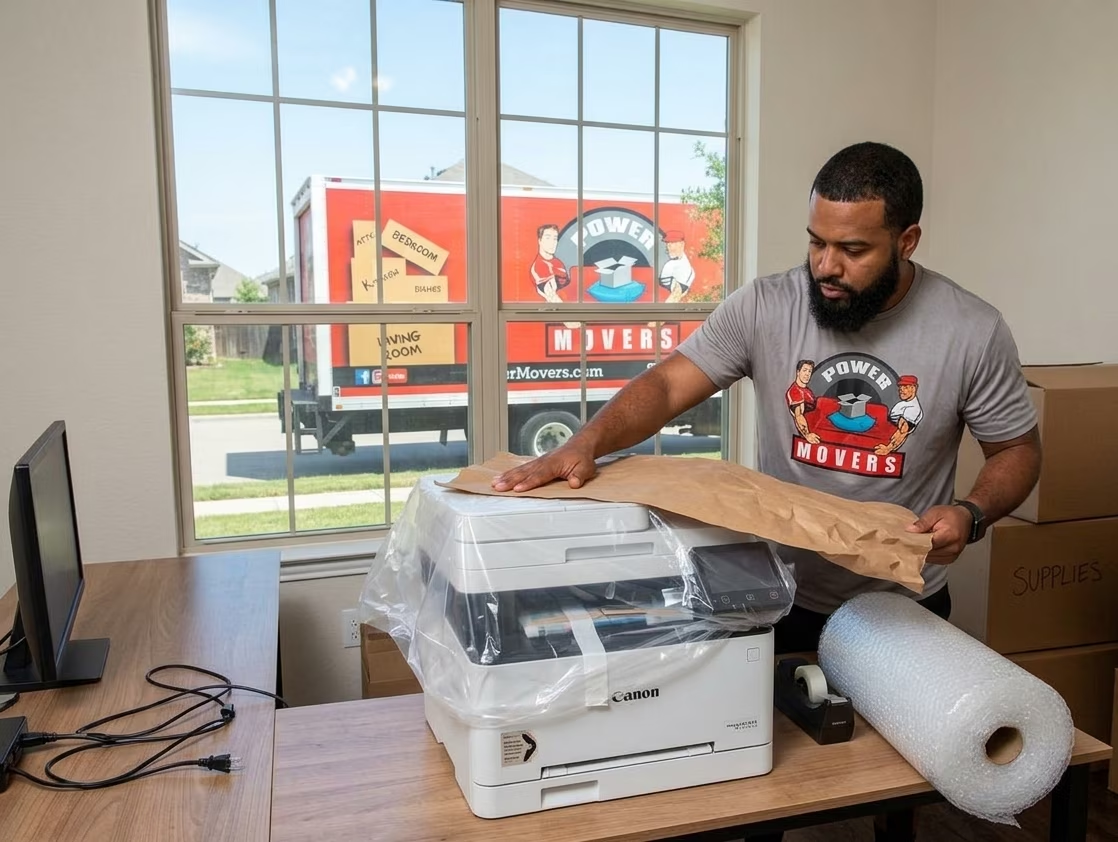
- Remove paper, secure moving parts, and bag the printer before boxing it.
- Keep it level. Never lay a printer on its side or turn it upside down, or ink can leak.
- Carry it in your own air-conditioned vehicle when you can. Heat is hard on printers and supplies.
- Get help with heavy printers. Many laser and office models call for two or more people.
If you remember one thing, remember this: how you pack ink or toner depends on your printer. Here’s what several manufacturers say in their own instructions.
Printer type | What manufacturers say about ink or toner | Other key steps |
Cartridge inkjets (many Epson XP and WF models) | Leave the cartridges installed. Removing them can dry out the print head and may stop the printer from printing. | Turn the printer off with its button, wait until the power light goes off, then unplug it so the print head returns to its home position. Tape the cartridge holder in place. |
Some older inkjets | Remove the cartridges and seal each one in a plastic bag. | Park the print head in its home position and tape the cartridge holder to the case. |
Ink tank printers (Epson EcoTank, HP Smart Tank) | Keep ink tank caps tightly closed. Don’t pack opened ink bottles in the printer box. | Keep the printer level. Some models have a transport lock or an ink-system step to follow. |
Brother laser printers | Leave the toner cartridge and drum unit inside the machine. | Turn the printer off and let it cool for at least 10 minutes. Use the original bag and carton. |
Canon laser printers | Remove the toner cartridges, especially for long-distance moves, to prevent toner from spilling. | Put toner cartridges in a protective bag or wrap them in a thick cloth. Remove the paper drawer. Carry with two or more people. |
HP large-format and office printers | HP’s guidance for some LaserJet Enterprise models is to run Prepare for Shipping and remove the cartridges. For PageWide printers, HP says to contact your reseller before shipping. | Keep the printer upright. |
If you can’t find guidance for your model, search the manufacturer’s support site for your model number plus the words moving or shipping, or call their support line. A five-minute call is cheaper than a new print head.
Table Of Contents[hide]
Things you'll need
- The original box and packing materials, if you kept them
- If not, a sturdy box with 2 to 3 inches of space on every side
- Bubble wrap, packing paper, or foam for cushioning
- A large plastic bag to protect the printer from dust and stray ink or toner
- Zip-top bags for cartridges, cables, and small parts
- Low-tack or residue-free tape (painter’s tape works well) to secure moving parts, plus packing tape for the box
- A lint-free cloth for wiping the printer clean
- Labels and a marker
- Your phone, for photos of the back-panel connections
Steps to pack a printer for moving
Step 1: Plan and test
- Print a test page before you pack, so you know the printer works. If it has a problem afterward, you’ll know it’s not just your imagination.
- Write down your model number and look up the manufacturer’s moving or shipping instructions.
- Note your network settings, including the Wi-Fi name and any printer-specific settings. Setup goes faster at the new place.
Step 2: Power down and disconnect
- Turn the printer off with its power button. Don’t pull the plug. On many inkjets, the print head returns to its home position and gets capped when the printer shuts down properly. Epson warns that unplugging while the power light is still on can leave the print head uncapped. That can dry the ink and make printing impossible.
- Wait for the printer to finish shutting down, then unplug it. For laser printers, Brother recommends leaving the machine off for at least 10 minutes so it can cool down.
- Take a photo of the back of the printer before you unplug anything, so you remember where every cable goes.
- Disconnect the power cord, USB cable, network cable, and any fax or phone line. If the power cord isn’t detachable, fold it loosely and rest it on top of the printer.
- Remove memory cards and USB drives.
- Take out all the paper, and check that no documents are left on the scanner glass or in the document feeder.
Step 3: Clean the printer
Wipe the outside with a dry or barely damp lint-free cloth and brush off any dust. Less loose dust and toner gets into the working parts that way. You’ll also spot scratches or damage before the move, which helps if you ever need to make a claim.
Step 4: Handle ink or toner the way your manual says
- If your manual says to leave cartridges installed, leave them. This is common for inkjets whose print head is part of the printer. Removing the cartridges can let the ink dry out in the print head.
- If your manual says to remove cartridges or toner, pack them separately. Seal each ink cartridge in its own zip-top bag so a leak can't reach anything else. Toner goes back in its protective bag, or wrap it in a thick cloth. Keep it upright and level.
- For ink tank printers, check that every ink tank cap is shut tight. Don't pack opened ink bottles in the printer box. Keep them upright and sealed in a separate bag.
Step 5: Secure the moving parts
- Tape the print head or cartridge holder to the case if your manual says to. Many printers came with a piece of protective material for exactly this. Use it if you kept it.
- If your printer has a transport lock, set it to the locked position.
- Close all covers and trays, and fold the scanner lid down.
- Remove detachable parts, such as output trays, paper stackers, and optional extra paper trays. Pack them separately and label them. Brother warns against carrying a printer with optional trays attached.
Use low-tack tape on any surface you don’t want to mark, and remember to remove every piece of tape and protective material when you set the printer up again.
Step 7: Pack accessories and supplies
- Cables and power cord: coil them, put them in a labeled zip-top bag, and tape the bag to the box or drop it inside.
- Manuals and software discs: keep them with the printer, or take a photo of the model number so you can download manuals later.
- Ink bottles, cartridges, and toner: pack them in their own box or bag, and carry them in your vehicle.
- Paper: keep it in its original wrapper or a sealed bag, lying flat, and off the floor.
Step 8: Seal and Label
Tape the box shut on every seam. Label it on several sides with PRINTER, FRAGILE, THIS SIDE UP, and KEEP LEVEL, and mark the room it belongs in. Ask helpers not to stack anything heavy on top.
Special printer types
- All-in-one printers: Make sure the scanner glass and document feeder are empty, close the lid, and engage any scanner or carriage lock your model has. Wrap the flatbed lid so it can't flex or scratch.
- Laser printers: They're often heavier than they look. Canon says to carry its laser machines with at least two people, using the lift handles. Let the machine cool before you pack it, and follow your model's rules for toner. Canon recommends removing it for long-distance moves, while Brother says to leave it in.
- Large office printers and copiers: Don't try to ship these in a regular box. Epson says some of its heavier models should always be carried by two or more people, and HP tells owners of some large printers to contact their reseller for help with relocation. If a printer or copier is leased, call the leasing company before you move it.
- Photo, wide-format, label, and 3D printers: Follow the manufacturer's instructions, secure all moving parts, remove consumables as directed, and use the original packaging if you can. For anything expensive or oversized, get professional help.
Moving Day Timeline
- Keep it upright and level. Epson says to avoid tilting a printer, standing it on end, or turning it upside down, or ink may leak. For some heavy models, Epson says not to tilt it more than 10 degrees while carrying it.
- Get lifting help. If the printer is heavy or awkward, lift it with two people and hold it by the lift handles or the positions shown in the manual.
- Protect the box from crushing. Load it where nothing heavy can sit on it, and don’t tilt or lay it on its side.
- Ride with it if you can. A personal vehicle with air conditioning is generally a safer place for a printer than the back of a hot truck.
After the Move
- Let the printer adjust to room temperature before you power it on, especially if it traveled in extreme heat or cold. Epson’s specifications say to use the printer without condensation.
- Unpack it upright and set it on a flat, stable surface.
- Remove all tape, cardboard, and protective materials, including anything holding the print head or cartridge holder, and unlock any transport lock.
- Reinstall cartridges or toner if you removed them.
- Plug it in and power it on. Follow the on-screen prompts.
- Reconnect to your network or computer, then print a test page.
- If print quality dropped, run the printer’s cleaning and alignment utilities. Epson, for example, recommends running print head cleaning or Print Quality Adjustment if quality has declined after a move.
Moving a printer in Houston, TX
Heat is the biggest risk. Epson’s published specifications for several current printers put the storage temperature limit at 104°F (40°C), and say a printer can be stored for one month at that temperature. Houston summers regularly blow past that outside. In late July 2026, forecasters expected heat index values of 108 to 110°F in the Houston area.
Weather-service-based figures show a closed car can reach about 109°F within 10 minutes when it’s 90°F outside, and about 133°F within an hour. So keep the printer in your air-conditioned vehicle. Don’t leave it in a garage or storage unit without climate control, and never in a parked car.
Humidity and condensation. Epson’s specifications call for storage and use without condensation. After a trip from a hot, humid truck or garage into a cool, air-conditioned room, let the boxed printer sit for a while before you open it and power it on.
Paper can curl in humid air. Keep paper sealed in its wrapper until you need it, and store it flat in a dry spot to help prevent curling and jams.
Retiring an old printer? The City of Houston’s Environmental Service Centers accept printers, computer equipment, and electronic scrap from residents. Call 311 or check the city’s website for current hours and requirements before you go. If you’re giving away or selling a multifunction printer, clear any stored data first.
Moving an office? Many office copiers and multifunction machines store images of scanned or copied documents on an internal hard drive. The Federal Trade Commission has raised concerns about that data. Erase or destroy the drives before you sell or discard a machine, and require erasure when a leased machine is returned.
Common mistakes to avoid
- Assuming every printer should have its cartridges removed
- Unplugging the printer before it finishes shutting down
- Tilting a printer, laying it on its side, or turning it upside down
- Leaving paper in the trays, on the glass, or in the feeder
- Forgetting to tape down the print head or lock the carriage, or forgetting to remove the tape afterward
- Packing ink, toner, or opened ink bottles loose in the box
- Using a box that’s too big, with no cushioning
- Trying to carry a heavy laser or office printer alone
- Leaving the printer in a hot vehicle, garage, or storage unit
- Skipping the test print before and after the move
FAQs
Should I remove the ink cartridges before moving a printer? It depends on your printer. Many Epson cartridge inkjets say to leave the cartridges installed because removing them can dry out the print head. Some older models and some laser printers say to remove them. Check your model’s instructions or call the manufacturer.
Do I need the original box to move a printer? No, but it’s the best option because it was designed for your exact model. If you don’t have it, use a sturdy box with 2 to 3 inches of cushioned space on all sides, and keep the printer upright.
Can I lay a printer on its side or turn it upside down? No. Epson warns that tilting a printer, standing it on end, or turning it upside down can cause ink to leak. Always keep it level.
How do I pack a laser printer for moving? Let it cool, unplug it, remove paper, and follow your manufacturer’s toner instructions, since Brother and Canon give different advice. Bag it, box it in the original packaging if possible, and get a second person to help you lift it.
Can movers move my printer? Most movers will move a printer that’s properly packed. Ink and toner can leak, though, so many people carry the printer and its supplies in their own air-conditioned vehicle. Ask your mover how they handle electronics and ink.
How do I move a printer without spilling ink? Keep it level, and never tilt it or lay it on its side. Keep ink tank caps tightly closed. If you remove cartridges, seal them in zip-top bags, and keep opened ink bottles out of the printer box.
What if my printer won’t print after the move? Remove all tape and protective materials, make sure the cartridges are seated properly, and run the printer’s cleaning and alignment utilities. If the print head dried out, you may need several cleaning cycles or a service visit.
How should I pack a large office printer or copier? Don’t pack it yourself. Contact the manufacturer, your reseller, or the leasing company, and use a professional crew with the right equipment. If it’s being returned or sold, make sure any stored data is wiped.
How do I get rid of an old printer in Houston? Take it to a City of Houston Environmental Service Center, which accepts printers and electronic scrap from residents. Check with the city for current hours and requirements first.
Check the manual for your model before you do anything with the ink or toner. Then shut the printer down with its power button, secure the moving parts, and keep it level and out of the heat. Keep the cables and supplies together in one bag. If the machine is heavy, or you’d rather hand off the packing and lifting, call Power Movers.
Sources:
- Epson, cartridge inkjets (XP-980)
- Epson, WF-7830 series
- Epson, heavy models (WF-C800 series)
- Epson, ink tank models (L8160)
- Epson, older-model transport FAQ
- Epson, environmental specifications
- HP, Smart Tank transport
- HP, Color LaserJet Enterprise shipping prep
- HP PageWide guidance
- Brother, pack and ship
- Canon, moving the printer
- Hunton, FTC and copier hard drives
- WMDT, car vs. air temperature
- KPRC Click2Houston, Houston heat
- City of Houston, Environmental Service Center

Article written by
Gary founded Power Movers in 2007 after watching too many moving companies damage or steal from customers with no consequences. The company runs on one rule: every crew member gets background-checked, trained, and held to the same standard Gary was held to as a police officer. Over 9 years in, Power Movers handles local and long-distance moves, specialty items, and corporate relocations for Houston businesses including Tesla and Airgas.